How to Install Claude Desktop on Windows
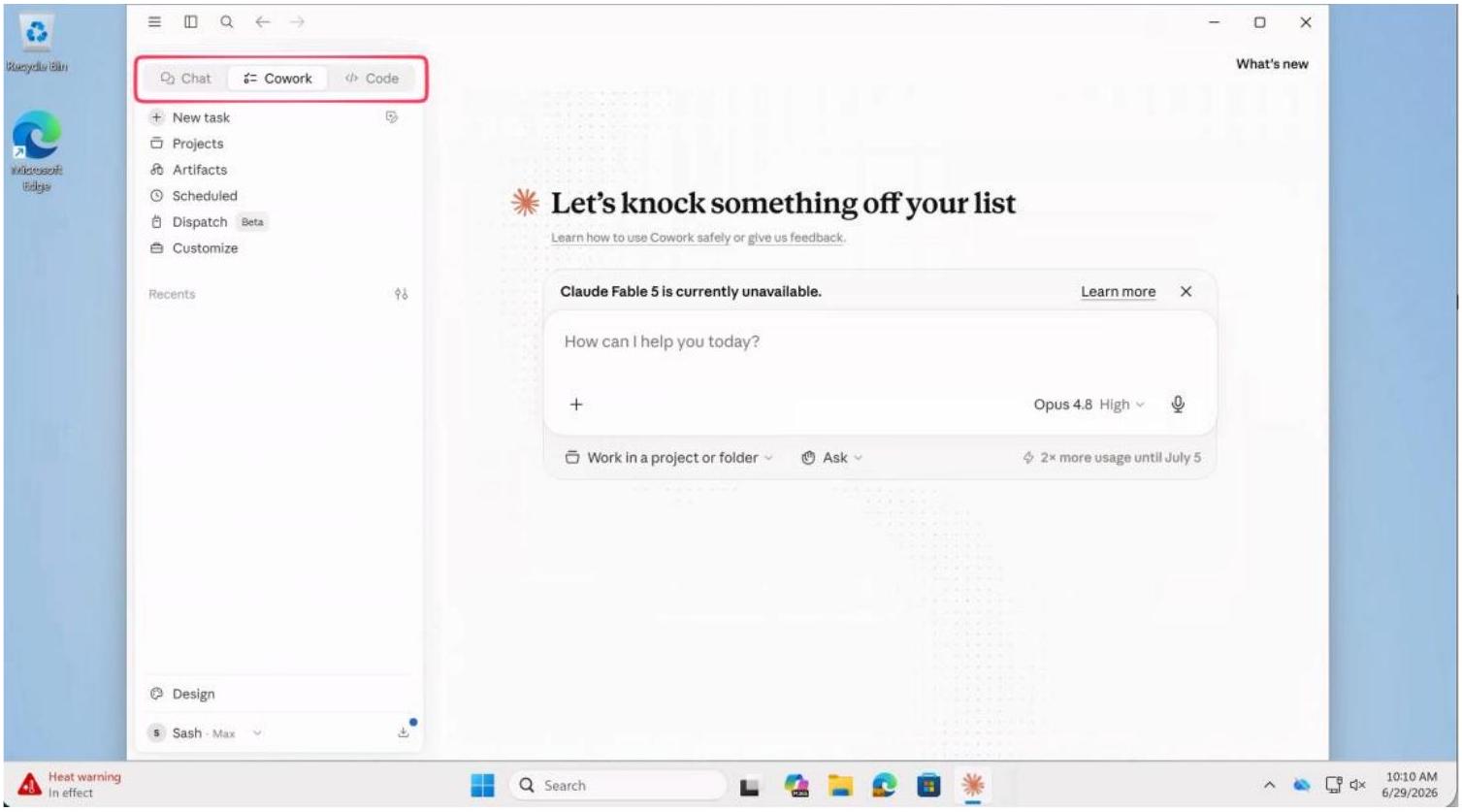
Claude Desktop puts Chat, Cowork, and Claude Code in a single app on your Windows machine. This guide walks you through the whole setup, from a fresh computer to Claude installed, signed in, and ready to use. You will install one free tool first (Git for Windows, which Claude Code relies on), then download and install Claude itself, turn on the two Windows features Claude Code needs, and open the app.
No coding experience is needed. Plan for about 15 minutes, most of which is clicking Next and waiting for downloads.
What You’ll Learn
- How to install Git for Windows, the one prerequisite Claude Code needs
- How to download and install the Claude Desktop app
- How to turn on the Windows features that let Claude Code run on your machine
- How to open Claude and sign in
Before You Start
- A Windows 10 or 11 computer
- Administrator rights on that computer (you will approve a couple of system prompts)
- A Claude account. You can create one for free during setup at claude.ai
The screenshots show Git version 2.54.0. If you see a newer version number, that is expected. The steps are the same.
Install Git for Windows
Git is a free, open-source tool that Claude Code uses behind the scenes to manage your files. Install it before Claude.
Step 1: Download the installer
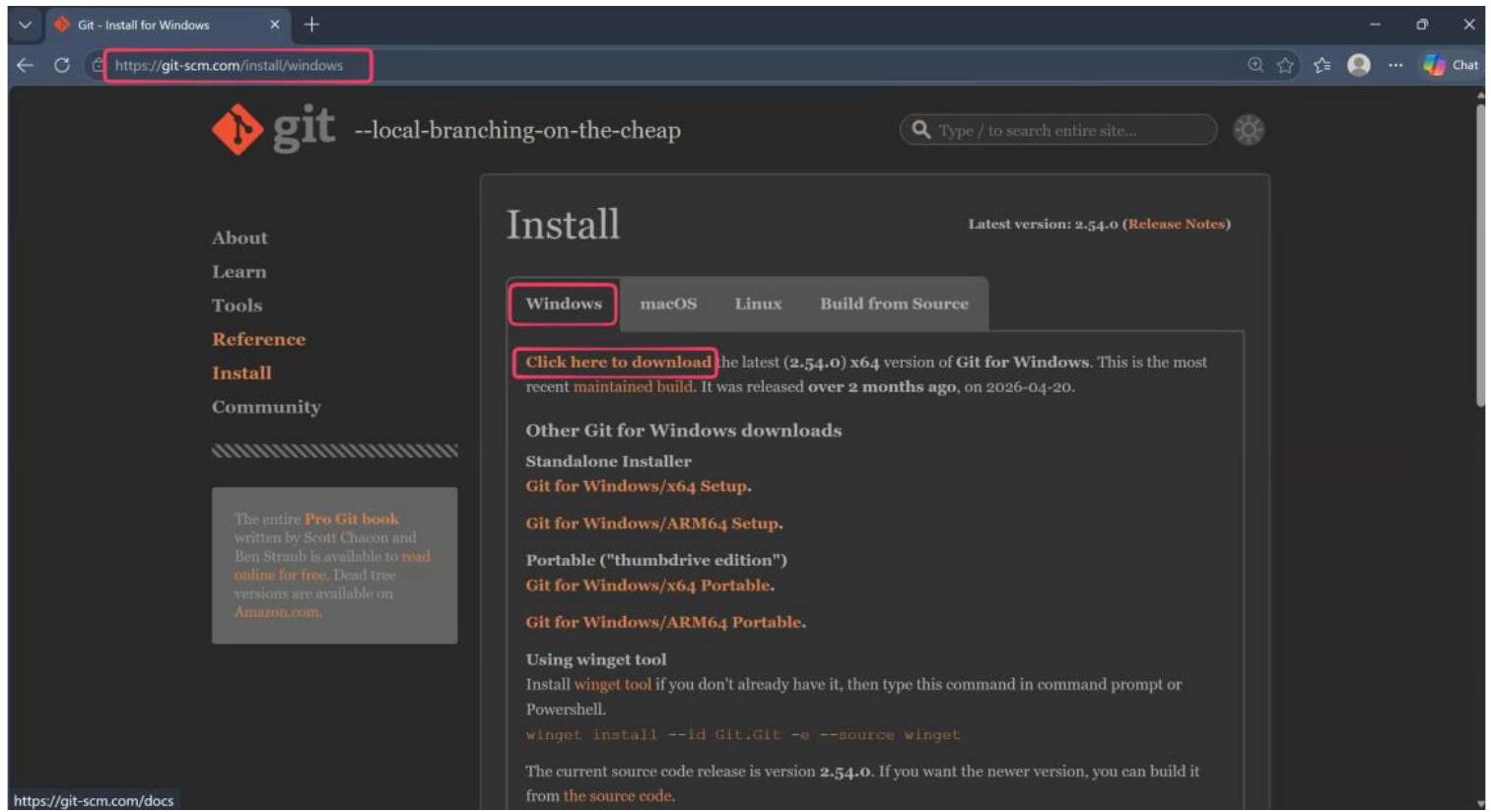
Go to git-scm.com/install/windows. Make sure the Windows tab is selected, then click “Click here to download.” The download starts on its own.
Step 2: Allow the installer to run
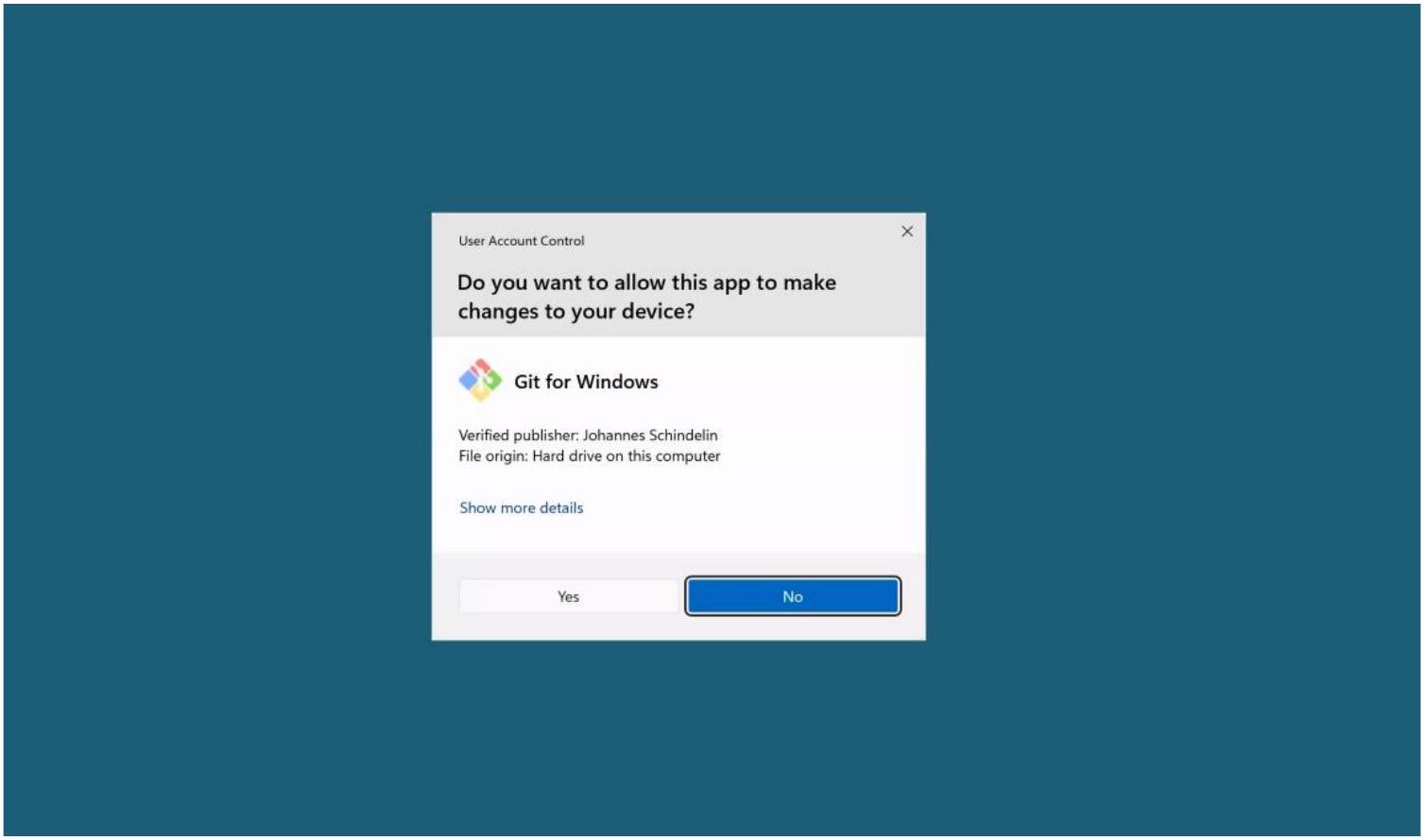
Open the downloaded file. Windows asks whether to let Git for Windows make changes to your device. Click Yes.
Step 3: Accept the license information
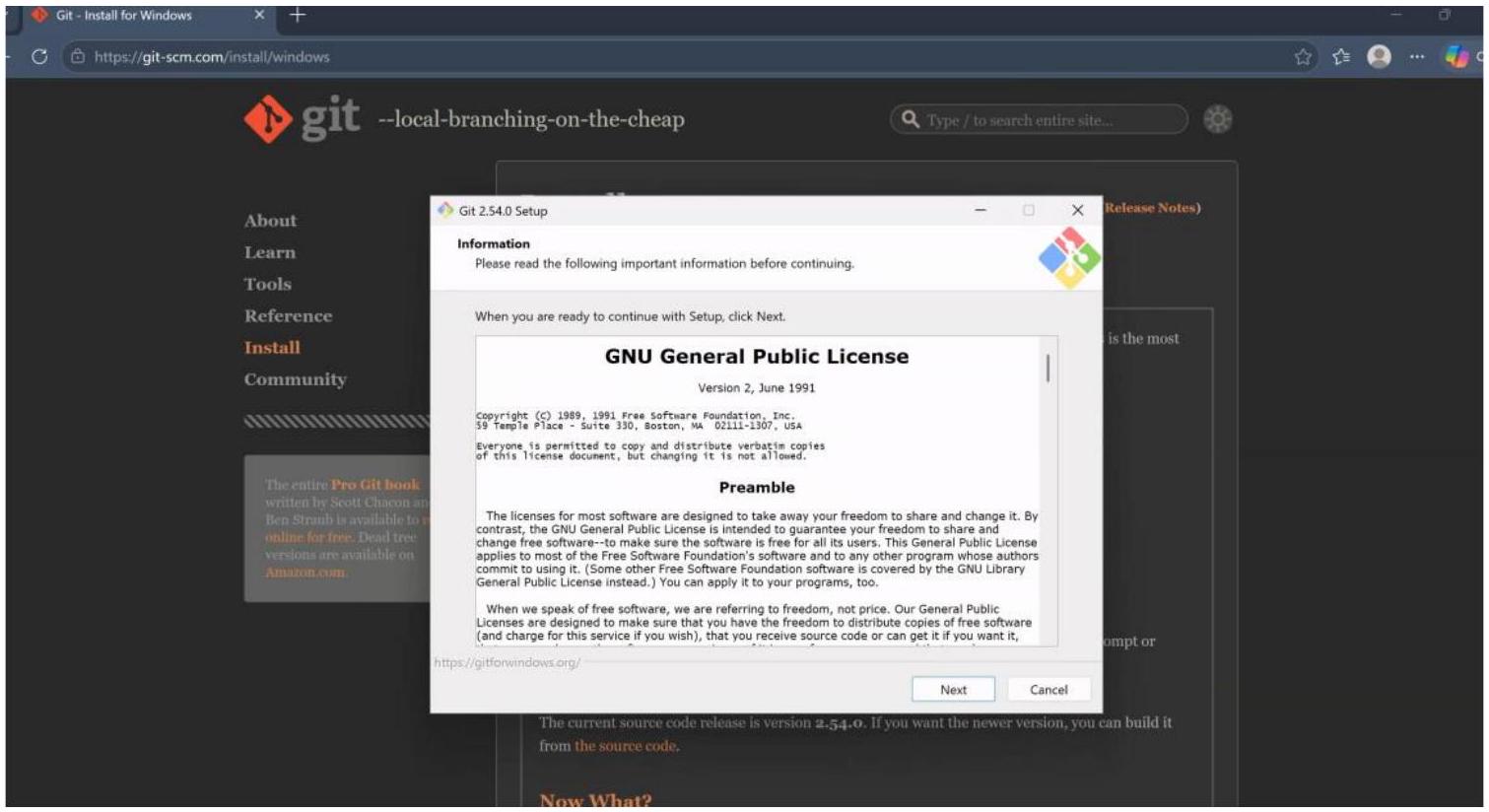
The setup wizard opens on the license screen. Click Next.
Step 4: Keep the default options on every screen
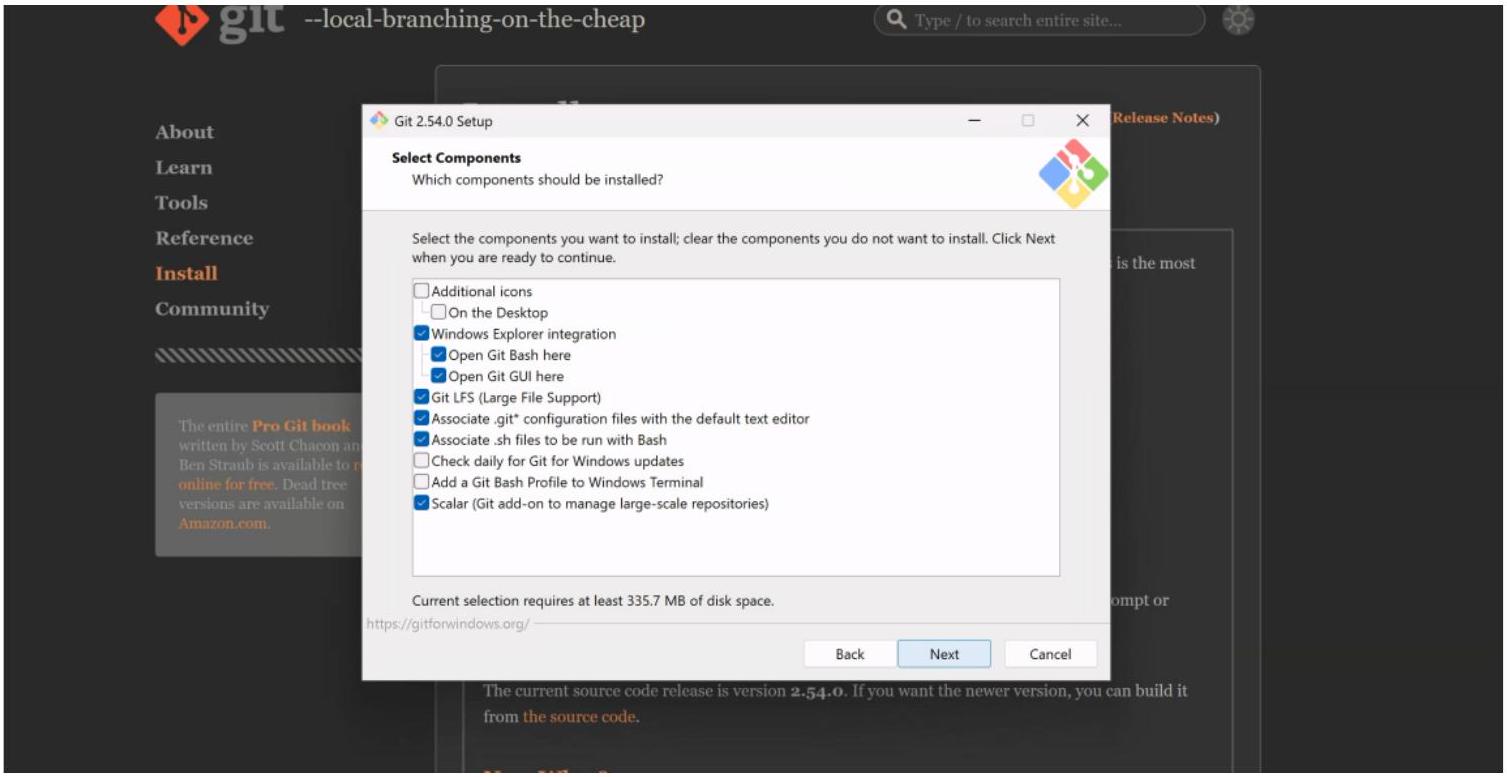
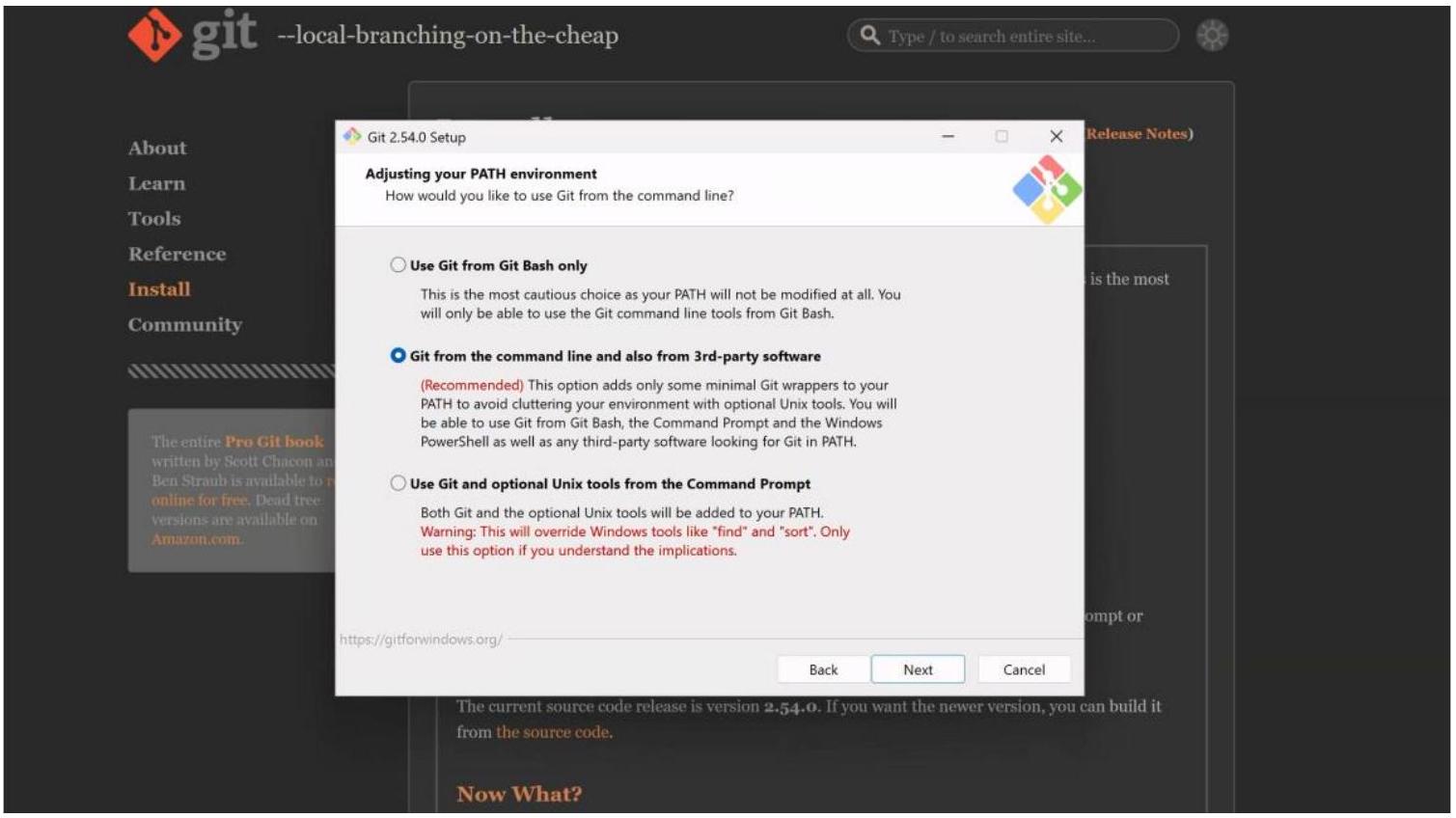
The wizard now walks through about ten configuration screens. Every screen already has the recommended option selected, so leave each one as it is and click Next to move through them. You do not need to change anything. Two screens are shown below so you know what to expect: the first one you reach, and the one people are most tempted to change.
The important thing on these screens: do not change the selections. The pre-selected defaults are correct for Claude Code. Just keep clicking Next.
First screen, Select Components. Leave the defaults and click Next.
Adjusting your PATH environment. Keep the recommended middle option and click Next.
Step 5: Start the install
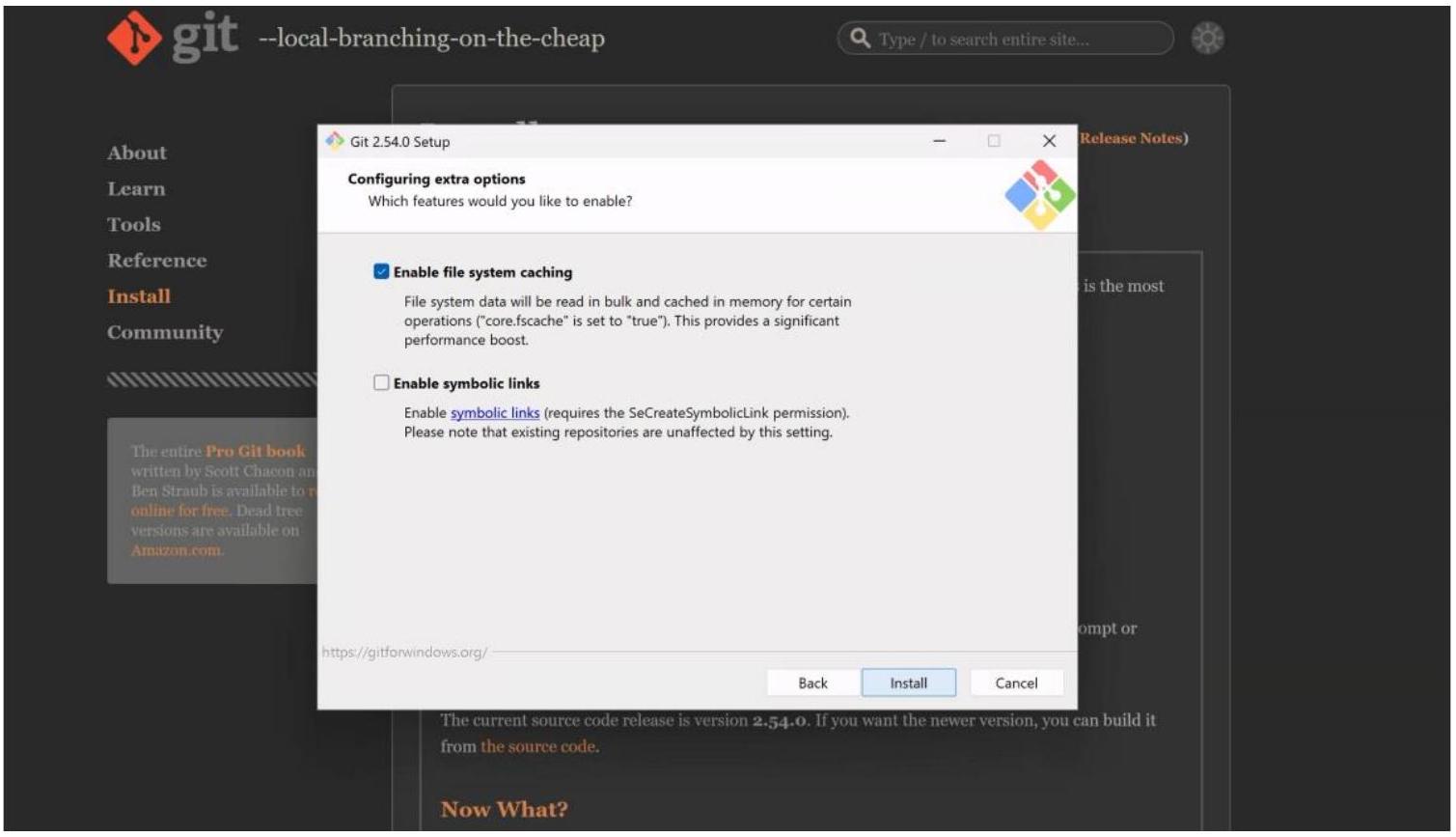
On the “Configuring extra options” screen, leave the defaults and click Install.
Step 6: Finish
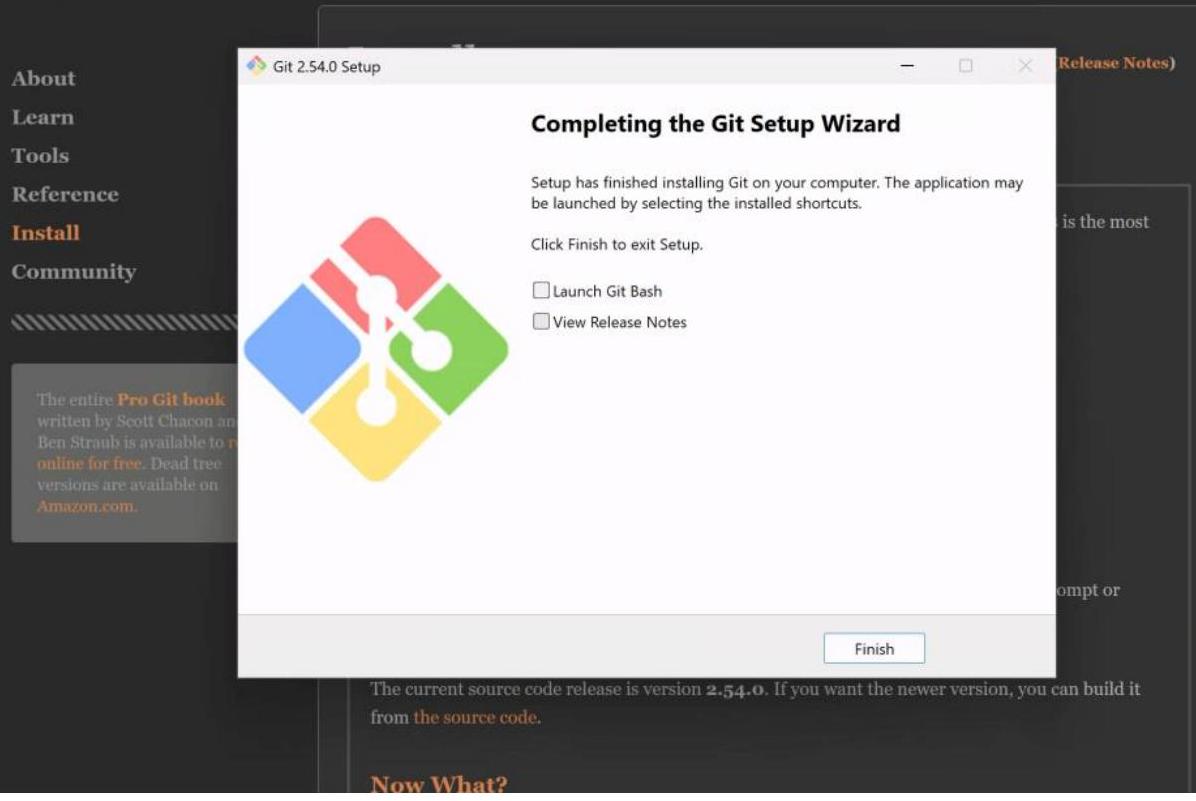
When setup completes, clear the “Launch Git Bash” and “View Release Notes” checkboxes if you like, then click Finish. Git is now installed. –local-branching-on-the-cheap
Install Claude Desktop
Step 1: Download Claude
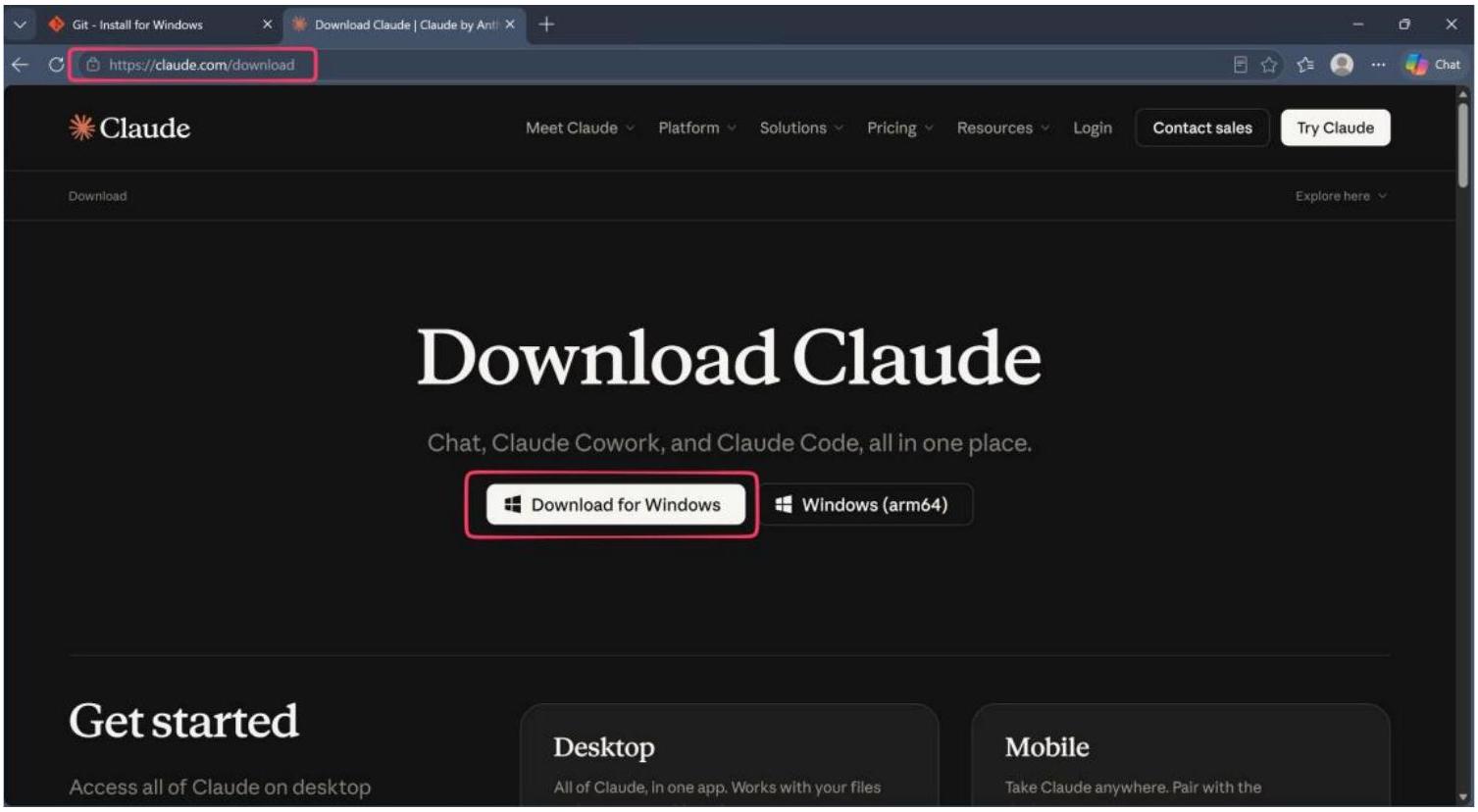
Go to claude.com/download and click “Download for Windows.” Use the “Windows (arm64)” button only if you have an ARM-based PC.
Step 2: Run the installer
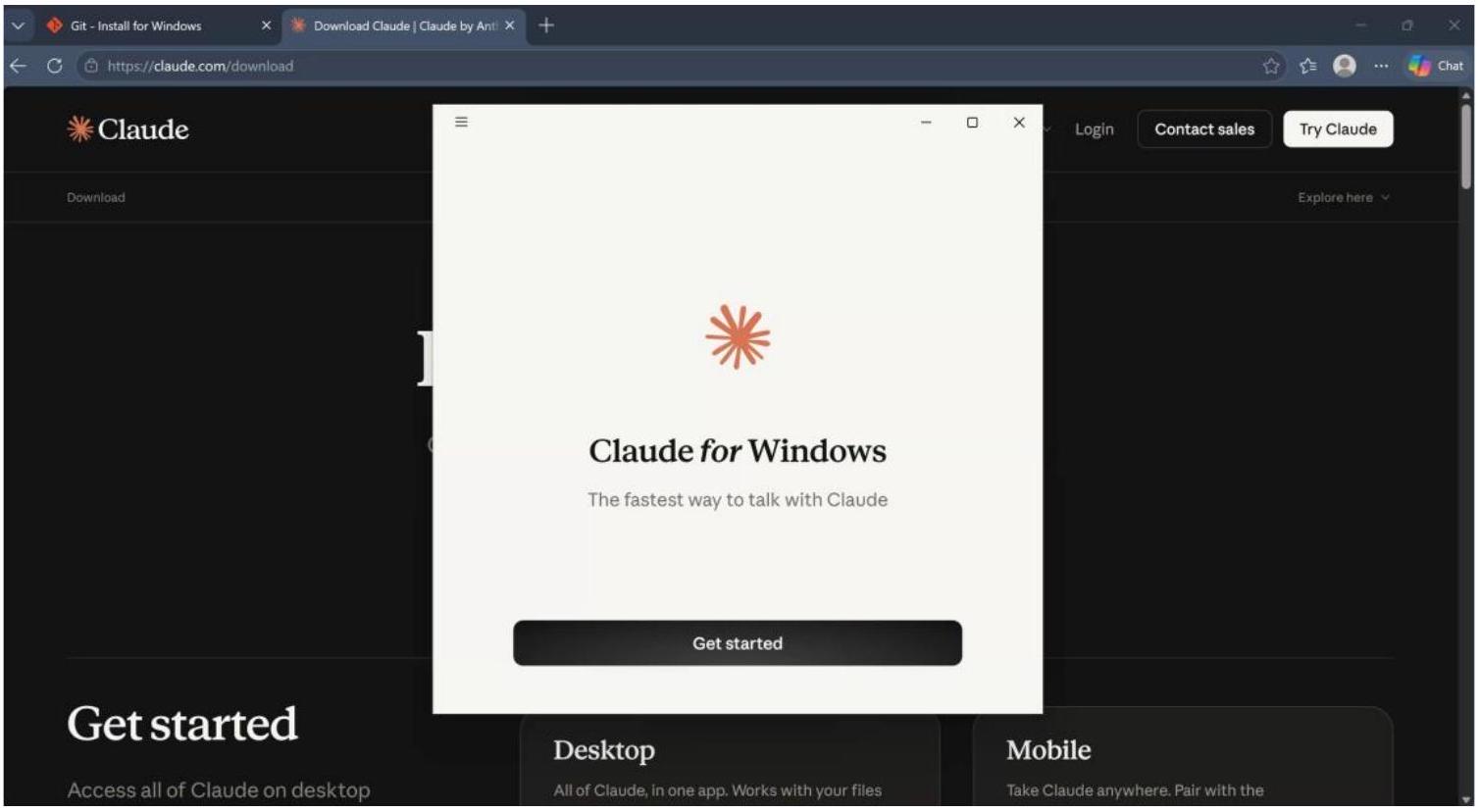
Open the downloaded file. The Claude for Windows window appears. Click Get started.
Step 3: Sign in
Sign in with your Claude account, or create one if you do not have it yet, and follow the prompts. Leave Claude open and move on to the next section.
Turn On the Windows Features Claude Code Needs
Claude Code runs your tasks inside a secure sandbox that uses two features built into Windows. You only need to turn these on once.
Step 1: Open PowerShell as administrator
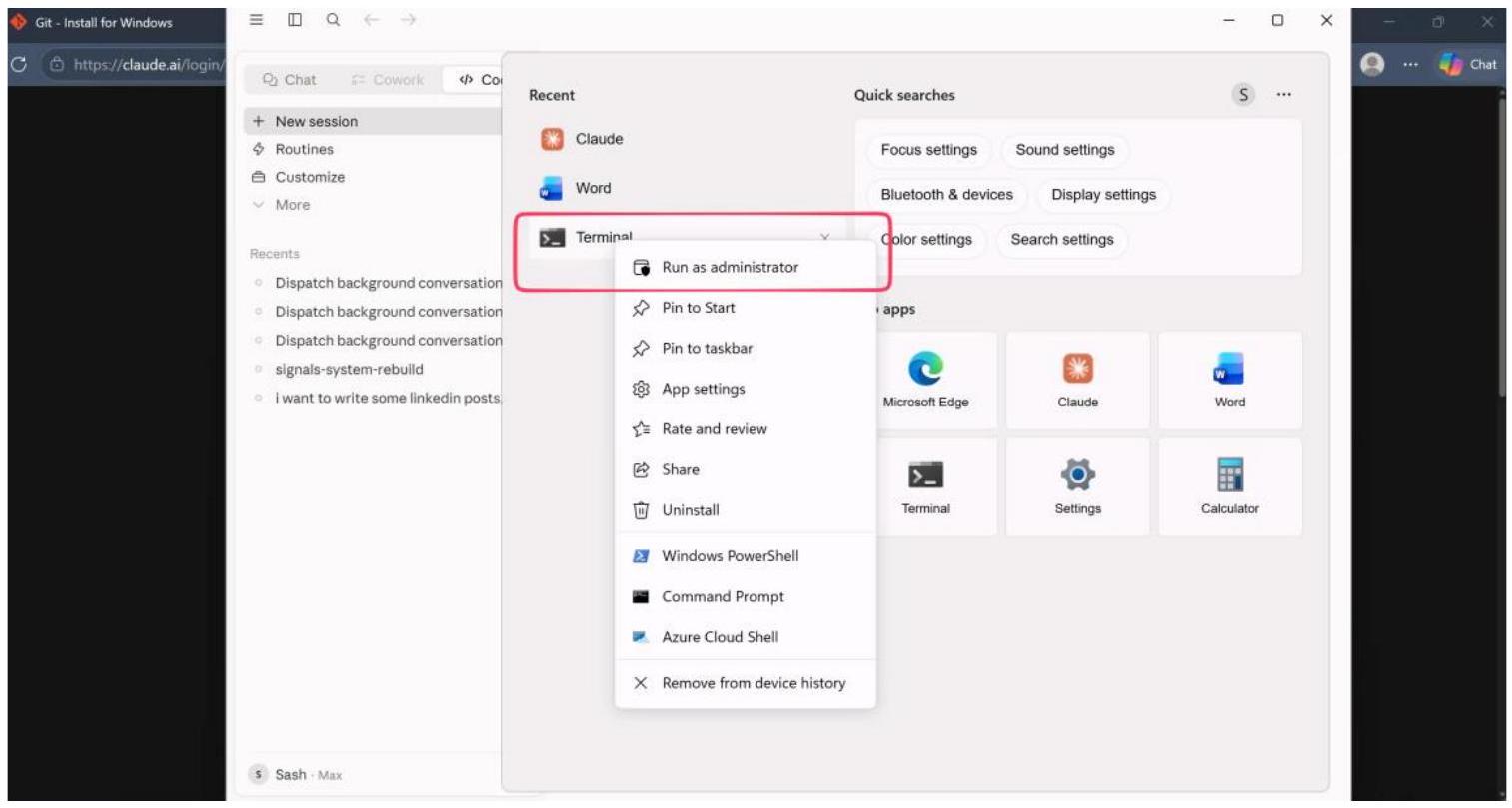
Click Start, type Terminal (or Windows PowerShell), right-click it, and choose “Run as administrator.” Click Yes if Windows asks for permission.
Step 2: Run both commands
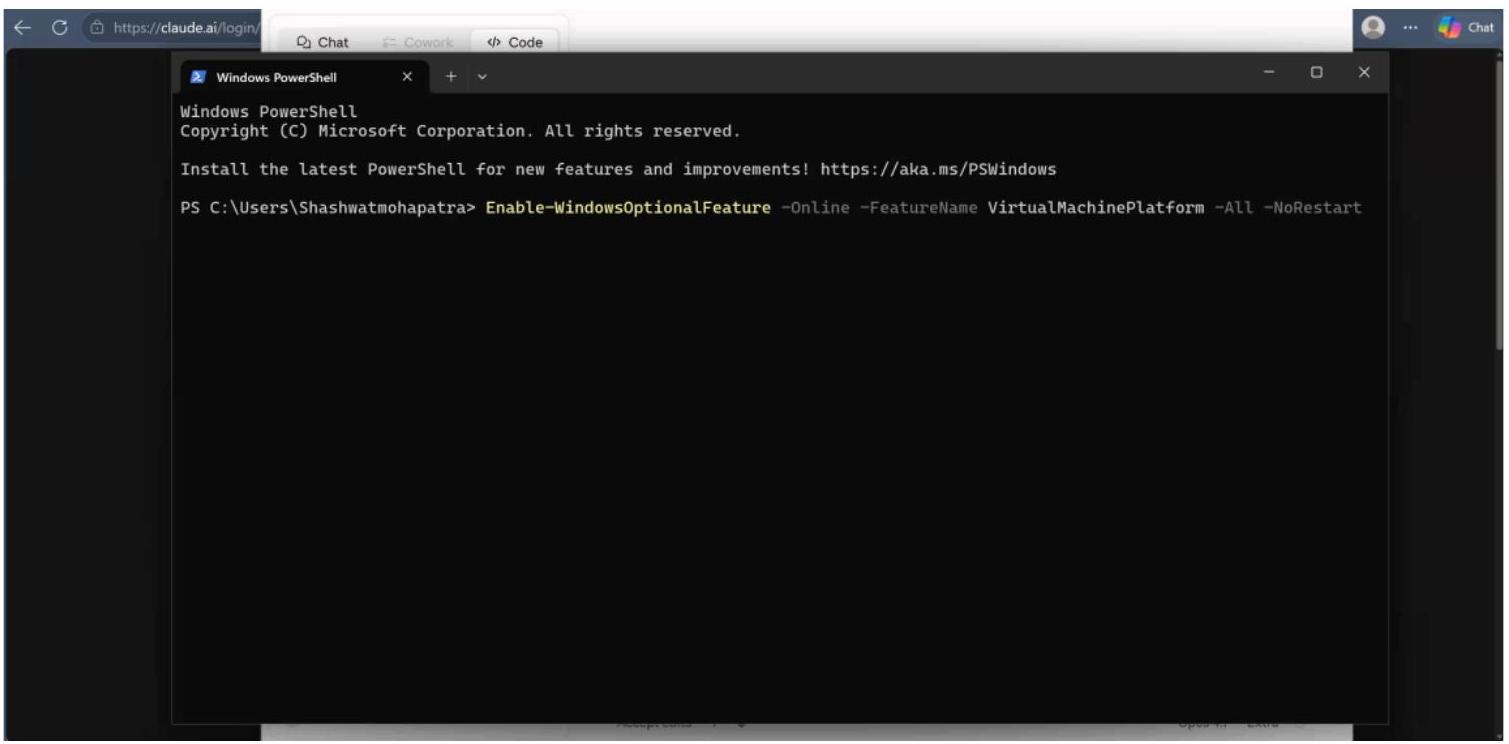
Type each command exactly as shown and press Enter after each one:
Enable-WindowsOptionalFeature -Online -FeatureName Microsoft-Windows-Subsystem-Linux -All -NoRestart
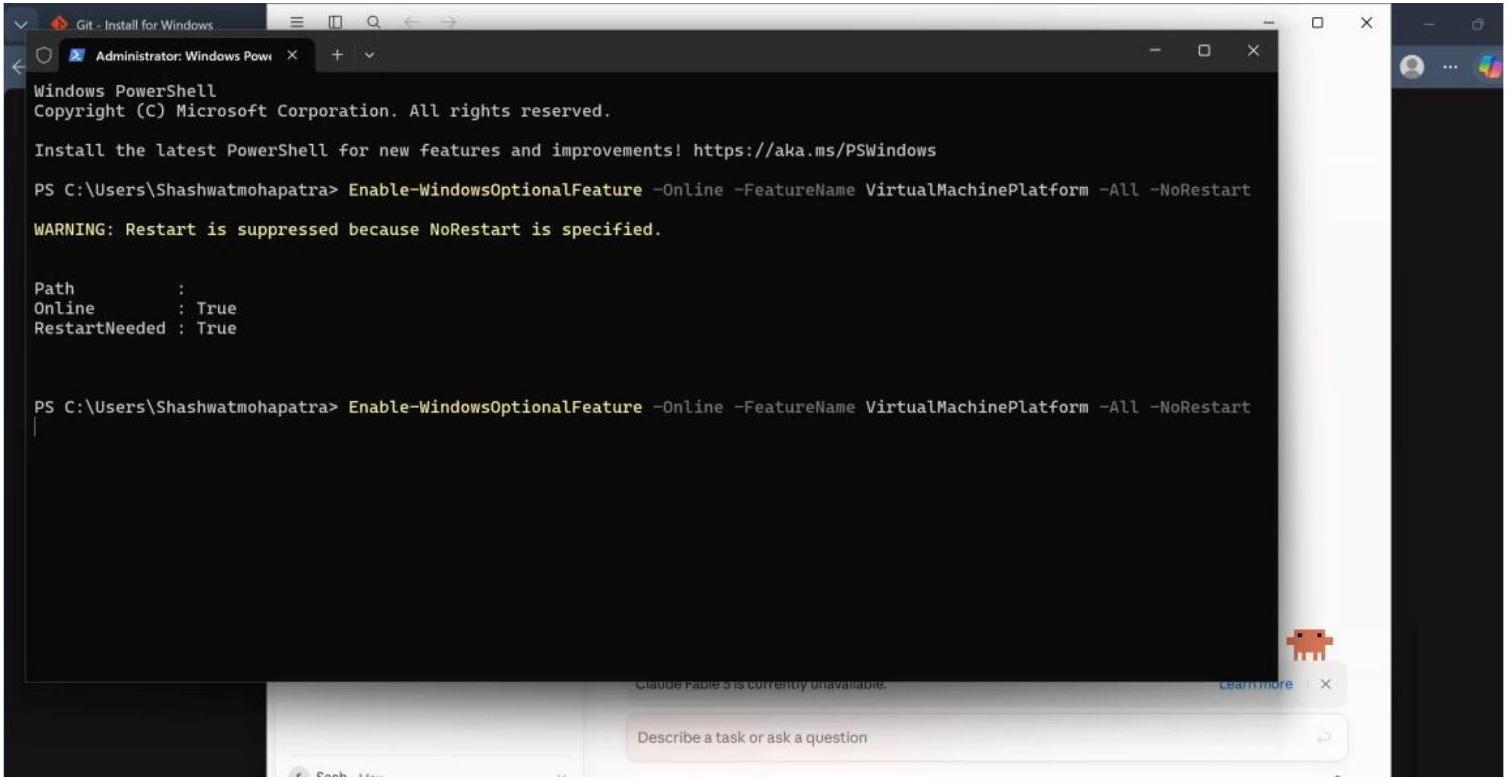
Enable-WindowsOptionalFeature -Online -FeatureName VirtualMachinePlatform -All -NoRestart
Step 3: Restart your computer
Each command finishes with “RestartNeeded : True.” Once both have run, restart your computer so the features take effect.
Open Claude
After the restart, open Claude from the Start menu. You land on the home screen, signed in and ready to go. That is the full install.
Tips & Tricks
- Keep the Git defaults. Every screen in the Git wizard is pre-set correctly. Changing options is the most common way to run into trouble later.
- Check your chip before downloading Claude. Most Windows laptops use the standard “Download for Windows” build. Only use the arm64 build if your PC has an ARM processor.
- Do not skip the restart. The two Windows features only switch on after a reboot. Claude Code will not run its sandbox until you restart.
- Run PowerShell as administrator. The feature commands fail without admin rights. If you see a permission error, close the window and reopen it with “Run as administrator.”
Wrapping Up
You now have Claude Desktop installed and running on Windows, with everything Claude Code needs already in place. From here you can start a chat, use Cowork to hand off multi-step tasks, or open Claude Code to work directly in your own folders. Welcome to the system.
Knowledge Check
1 / 5What are the primary components included in the Claude Desktop application according to the guide?