Guides / Data safety
Is Claude safe for confidential business data?
Checked against Anthropic's pages on November 25, 2026
Before a team puts client files, contracts or financials into Claude, someone asks the obvious question: is it safe?
The answer depends on three things you control. The plan your team is on decides which terms apply and whether your chats can train future models. The settings decide how long data is kept and who can see it. And the connectors decide what Claude can reach in your other systems, and what it can do there.
This guide walks through each one, using what Anthropic's own pages say, and ends with a simple way to decide what goes into Claude.
What you'll learn
- Which Claude plans count as business plans, and why that matters
- When your conversations can be used to train models, and the exceptions
- How long Claude keeps your data, and who can see it
- How to set connector permissions so Claude reads without sending or deleting
- What to do with regulated data, such as health records and legal work
- A green, yellow and red rule for what goes in
The short answer
On a Team or Enterprise plan, Claude is built for confidential business work. Those plans run under Anthropic's Commercial Terms, Anthropic doesn't train on your chats by default, and a Data Processing Addendum is included automatically. On a personal plan (Free, Pro, Max or Ultra), your chats can be used for training if the training setting is on, and the consumer terms apply.
| Personal: Free, Pro, Max, Ultra | Team | Enterprise | |
|---|---|---|---|
| Terms | Consumer Terms | Commercial Terms | Commercial Terms |
| Chats used for training | Only if "Help Improve our AI models" is on | No, by default | No, by default |
| Data Processing Addendum | No | Included | Included |
| Who controls settings | Each person | Owners | Owners |
| Custom retention period | No | No | Yes, minimum 30 days |
| Audit logs | No | No | Yes |
| HIPAA (signed BAA) | No | No | Yes, once turned on |
The table covers the plan. The rest of this guide covers the two other things that decide whether your data is safe: what you put in, and what you let Claude reach.
What happens to your data
Three things happen to anything you send Claude.
- Storage. Your chats, uploaded files, projects and memory are saved so you can come back to them.
- Processing. Every prompt, file and page Claude reads is handled on Anthropic's systems.
- Training. Your conversations may be used to improve future models, depending on your plan and settings.
Storage and processing come with any cloud service, the same way your email and documents live on someone else's servers. Training is the one most people worry about, and it's the one with a clear switch.
Training: depends on your plan
On Team, Enterprise and the API, Anthropic's position is direct: “By default, we will not use your inputs or outputs from our commercial products (e.g. Claude for Work, Anthropic API...) to train our models.” Training is off by default, with one exception to know about:
- Feedback. If someone clicks thumbs up or thumbs down on a response, that conversation can be used for training and is kept for up to 5 years. An Owner can turn feedback off for everyone at Organization settings > Data and Privacy > “Rate chats”.
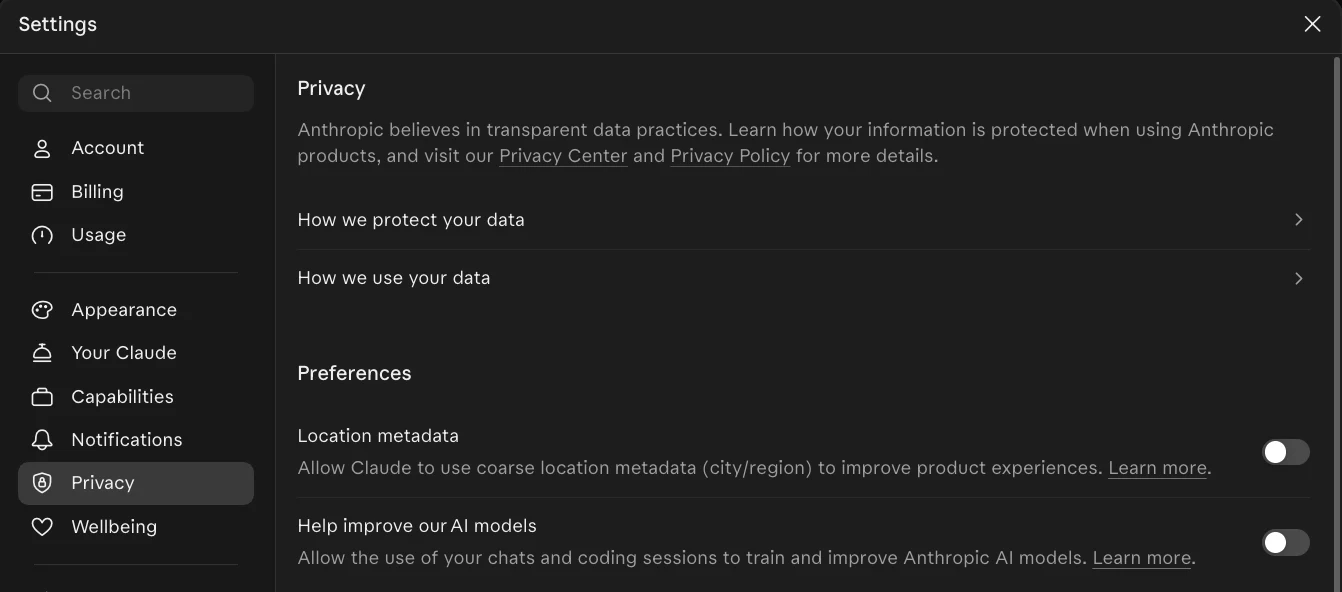
On personal plans, your chats are used for training if you allow it. The setting is at Settings > Privacy > “Help Improve our AI models”. If it's on, Anthropic may keep your data in a de-identified form for up to 5 years. Two things still apply with the setting off: chats flagged by safety systems may be used to improve those systems, and thumbs up or down sends that conversation for training.
Incognito chats are never used for training, on any plan. Start one when you need Claude for something sensitive and don't want it in your history or Claude's memory.
Connector data from Gmail, Google Drive and Google Calendar isn't used for training. One catch on personal plans: if you copy text from an email and paste it into the chat with training on, that pasted text can be used.
How long Claude keeps your data
| Plan | How long chats are kept | When you delete a chat |
|---|---|---|
| Personal | Up to 5 years in de-identified form if training is on | Removed from back-end systems within 30 days |
| Team | Kept in the product until deleted | Removed from back-end systems within 30 days |
| Enterprise | Kept until deleted by default, or a custom period you set (minimum 30 days) | Removed from back-end systems within 30 days |
Incognito chats are deleted within 30 days on every plan, or later if an Enterprise organization sets a longer retention period. Chats flagged for breaking Anthropic's usage policy are kept longer: up to 2 years for the content and 7 years for the safety scores.
Zero data retention means Anthropic doesn't keep your inputs and outputs, except content flagged for misuse and anything the law requires it to keep. It's available only by approval, for the API and for Claude Code on Enterprise. Team and Enterprise chat aren't eligible, so work that needs zero retention belongs on the API.
Who can see your conversations
Anthropic staff. By default, Anthropic employees can't access your conversations. There are two exceptions: a chat you send as feedback, and content that needs review under Anthropic's usage policy, which only designated members of its Trust & Safety team can see.
Your own company. On Team and Enterprise, the Primary Owner can export the organization's data, and that export includes members' conversations. Incognito chats are included too. Members can't export their own data unless an Owner turns that on.
This is worth telling your team before they start: a work plan protects company data from the outside, and the company itself can see what's in it.
Your colleagues. Your chats are private by default, including chats inside a shared project. Teammates see a chat only if you share it. On Team and Enterprise, you can't share a chat publicly, and sharing outside the organization is something admins control.
Audit logs, a record of who did what, are available on Enterprise only.
Connectors: what Claude can reach, and what it can do
Connectors let Claude work inside your other tools: Gmail, Google Drive, Calendar, your CRM, a database. This is where the question moves from what Anthropic keeps to what Claude can change.
- Claude sees only what your account can see. It uses your existing permissions in Google or any other tool. If you can't open a folder, neither can Claude.
- Content stays where it is until Claude reads it. When Claude pulls a spreadsheet into a chat, that content is now in the conversation, and the plan's storage and training rules apply to it.
Read actions and write actions
Every connector is a set of tools. Some read (search, read, view). Others write (send, reply, share, create, edit, delete). In Claude, each tool, or each group of tools, gets a permission. On Team and Enterprise, Owners choose one of three for the whole organization, and members can't override them:
- Always allow. Claude uses the tool without asking.
- Needs approval. Claude asks before each use. In Auto mode, it runs without asking unless an automated check flags the action as risky.
- Blocked. Claude can't use the tool.
Some people also see a fourth choice in their own connector settings, Always ask, which asks even in Auto mode. Anthropic is rolling it out gradually, and on Team and Enterprise the organization's settings come first.
Auto mode matters here. On Team, the setting that allows it is on by default, and in Auto mode Needs approval doesn't guarantee a person sees each write. The rule RiftLab uses and recommends: let Claude read, require approval before it writes, and block anything nobody should do through AI. If Auto mode stays allowed in your organization, block the writes that must never happen without a person, or turn Auto mode off at Organization settings > Capabilities.
| Connector | Always allow | Needs approval | Blocked |
|---|---|---|---|
| Gmail | Search and read email | Draft, send, reply, forward | Move to trash |
| Google Drive | Search and read files | Upload, create | Share, move to trash |
| Google Calendar | View events, find free time | Create, change, delete events |
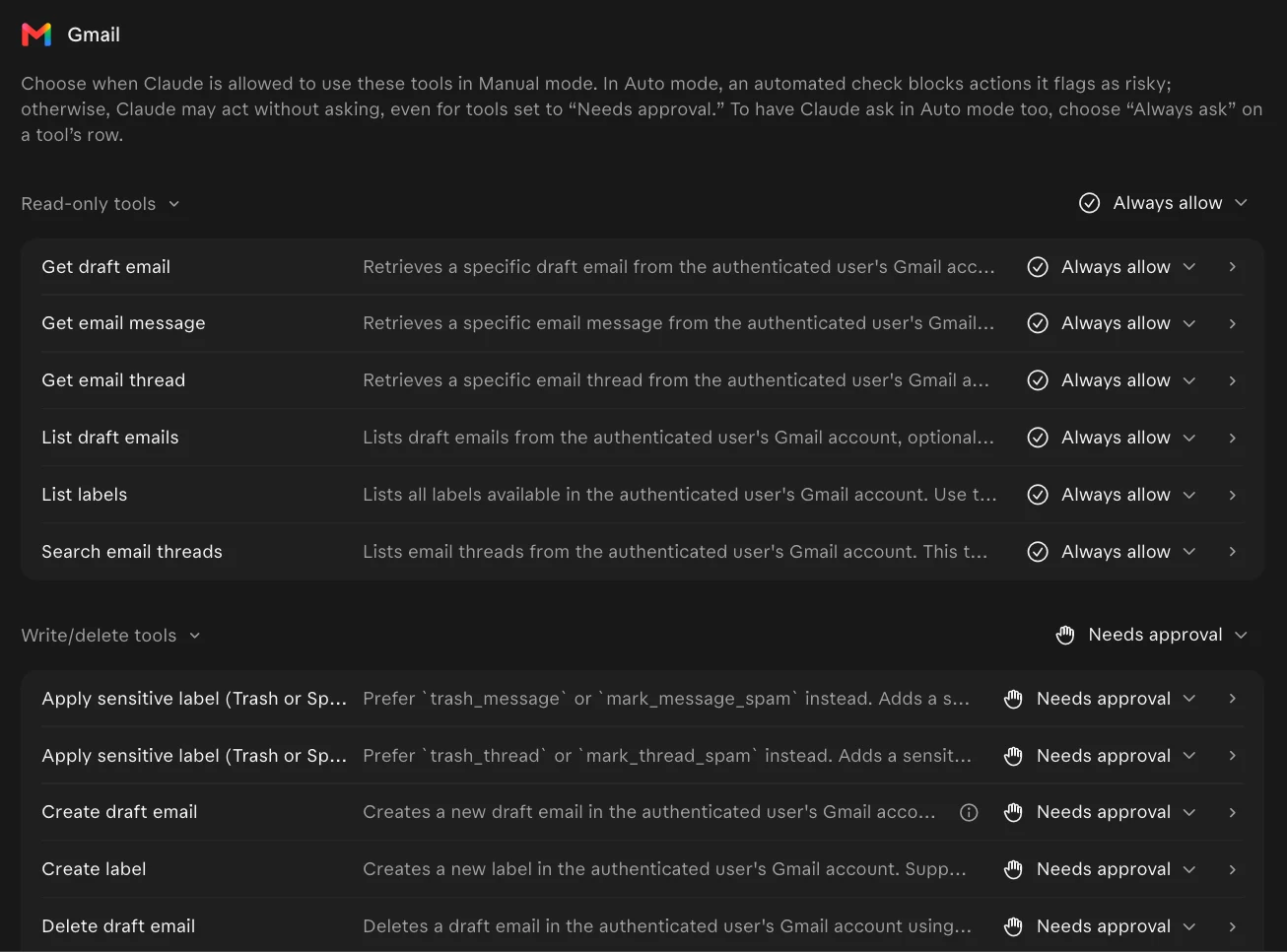
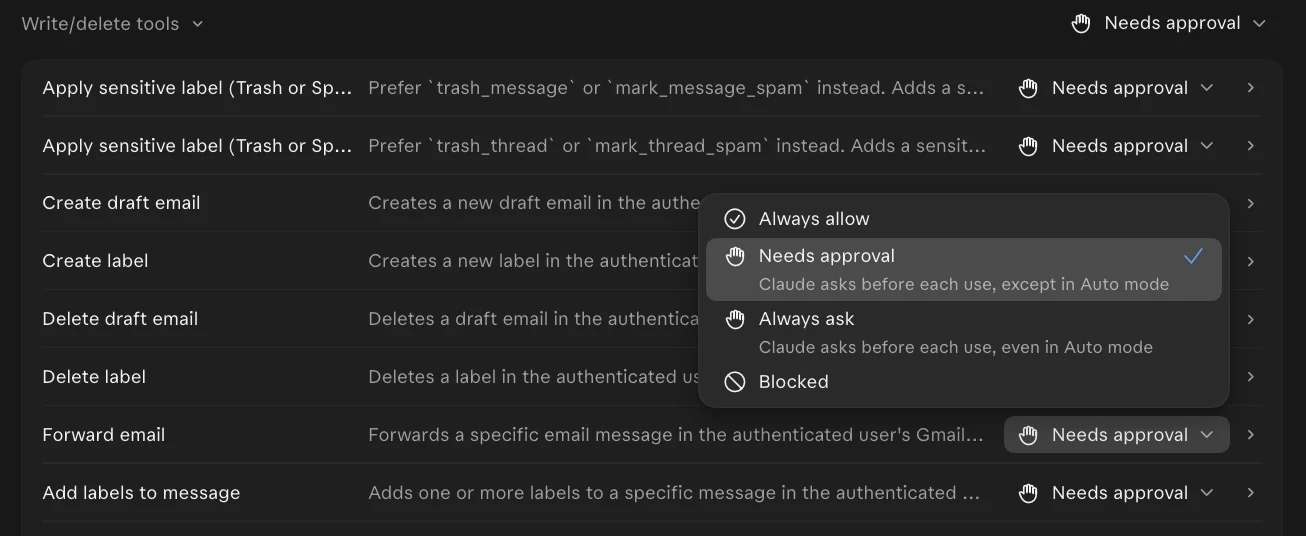
Tool names vary by connector, so open the tool list for each one in your own account before you set permissions. On Team and Enterprise, connectors stay off until an Owner turns each one on, and turning one on doesn't give anyone access until they sign in. Owners set permissions for the whole organization at Organization settings > Connectors, then the connector, then Tools, and members can't override them.
One thing to check yourself: Anthropic's pages don't agree on the Gmail connector. The help center says Claude can draft, send, reply and forward, and asks for approval before each by default. A product docs page still describes it as read-only. And in Auto mode, Anthropic says its automated check can miss risky actions, so don't rely on it for anything that sends or shares.
Custom connectors, the ones you build or install from outside Anthropic's directory, aren't reviewed by Anthropic. Have someone who understands the connector check what it can do before anyone uses it.
From Sash's own setup
Claude manages my email and calendar, and it drafts client proposals. Everything it writes lands as a draft, and I read it before it goes out.
For our company database, I set even the read tools to Needs approval. It's slower, because Claude asks every time it wants to look something up. That's the trade I make for data I can't afford to leak.
And once I pasted an API key into a Claude Code session and asked Claude to save it to a settings file. Claude did it, then told me the key now sat in the conversation history and I should replace it. It was right. Passwords and keys never go into a chat, even your own.
What to put in Claude: green, yellow and red
Sort the work before it goes in. RiftLab borrowed this from cloud migrations, where teams had to decide which data could leave the building.
Green
Use freely, on any plan
Public information, published content, general questions, practice prompts.
Yellow
Check your settings first
Internal work such as meeting notes, project plans and drafts. Use a business plan, or turn training off on a personal one, and review connectors before you use them.
Red
Business plan with the right agreements, or keep it out
Client confidential data, personal data, health information, passwords, API keys and trade secrets. Health information also needs a signed Business Associate Agreement and the HIPAA configuration, checked with whoever owns compliance at your company. Passwords and API keys stay out on every plan.
A quick test for red: if you wouldn't email it to a stranger, it's red.
Regulated and highly sensitive data
Health information (HIPAA). Anthropic signs a Business Associate Agreement for Enterprise plans, the API and Claude in Microsoft Foundry. On Enterprise it isn't automatic: the Primary Owner has to turn on the HIPAA configuration and accept the agreement. Team and personal plans can't be set up for HIPAA. Even on Enterprise, some features are available but not covered, and some are switched off, so check Anthropic's HIPAA coverage list before you rely on a feature.
Legal work. Anthropic has published its view on privilege and confidentiality. It notes a February 2026 federal court decision that found someone's use of a personal AI account, without a lawyer directing the work, wasn't protected. Anthropic's suggestions: work on commercial terms with the Data Processing Addendum, keep a lawyer directing and checking the work, and follow your own client consent practices. Anthropic is clear this isn't legal advice: whether a setup meets your obligations is a question for your own counsel.
Data that must stay in a region or in your own cloud. Claude chat stores data in the US. Enterprise plans on usage-based billing can choose US-only inference. If your policy is that data stays in your own cloud environment, Claude is available through Amazon Bedrock and Google Cloud, where you choose the region and the cloud provider processes the data. Claude is also on Microsoft Foundry, but there Anthropic processes the data, and Foundry currently offers US regions only.
The most sensitive work. For data where any outside processing is too much risk, some regulated businesses run open models on their own hardware, so the data stays on equipment they control. It takes more work to run and maintain.
Deciding your setup
| Your situation | A reasonable setup |
|---|---|
| One person, public and general work | Any plan. The training setting is your choice. |
| Internal notes and drafts on a personal plan | Turn off "Help Improve our AI models" and use Incognito for anything sensitive. |
| A team handling client or company data | Team plan, feedback off if you prefer, connector permissions set by an Owner. |
| You need audit logs or a set retention period | Enterprise. |
| Health information | Enterprise or the API, with a signed BAA and the HIPAA configuration, checked with your compliance lead. |
| Zero retention, or data that must stay in your own cloud | The API with an approved zero retention agreement, or Claude through Amazon Bedrock or Google Cloud. |
Pro tips
- Check the plan before the settings. Settings > Billing shows which plan you're on. A work email on a personal plan is still a personal plan.
- Decide on feedback. On Team and Enterprise, thumbs up and down are the main way data can reach training. Turn "Rate chats" off if that matters to you.
- Set connector permissions once, for everyone. An Owner setting them for the organization beats asking each person to remember.
- Decide on Auto mode. On Team it's allowed by default, and in Auto mode Needs approval doesn't stop for a person. Turn it off, or block what must never run unattended.
- Use Incognito for one-off sensitive questions. It stays out of history and memory, and out of training on every plan.
- Tell the team what admins can see. It saves an awkward conversation later.
- Recheck every few months. Anthropic updated several of these pages in the last month, and what's true today can shift.
Wrapping up
Claude can be a safe place for confidential business data when three things line up: a business plan, settings chosen on purpose, and connectors set so they can read but need a person's yes before they send or delete. Most of the risk comes from the last two, because they depend on choices your team makes.
Work through it this week
The AI data safety checklist covers these settings in twelve steps, from checking your plan to sorting your work.
Open the checklist →Want a second pair of eyes?
RiftLab's AI Data Security Review looks at which AI tools your team uses, what each one can reach, and the settings and agreements in place. You get a report with the fixes. From $2,500.
See the review →Sources, checked November 25, 2026
- Training, business plans
- Training, personal plans
- Training setting
- Retention, business plans
- Retention, personal plans
- Enterprise custom retention
- Zero data retention
- Staff access
- Organization data export
- Incognito chats
- Audit logs
- Sharing chats
- Project visibility
- Data Processing Addendum
- Connector permissions
- Google Workspace connectors
- Gmail connector docs page
- HIPAA on Enterprise
- HIPAA coverage
- Legal work
- Servers and regions
- Regional options
- Trust Center
This guide comes from RiftLab's free lesson Is Your Data Safe with AI? It isn't legal or compliance advice.