Using Perplexity Spaces for long-form work
Perplexity is more than just a search engine—it's an AI-powered research assistant that combines real-time web browsing with large language models to deliver fast, trusted answers. But when you're juggling long-term projects, recurring questions, or team collaboration, a single thread isn’t enough. That’s where Spaces come in.
Perplexity Spaces let you group related Threads, files, and instructions into organized workspaces tailored to a specific topic or project. Whether you're studying for exams, writing a report, or collaborating with teammates, Spaces give you structure, memory, and powerful research tools.
What You’ll Learn in This Guide
- What Perplexity Spaces are and how they evolved from Collections
- How to create, organize, and manage Spaces
- How to upload files and links, and manage sources
- The difference between file upload and file search
- How to invite collaborators and share your Space
- Real-world use cases to inspire your workflow
- New features in 2025 and pro tips to stay organized
What Are Perplexity Spaces?
Perplexity Spaces are customizable AI research hubs.
Each Space is a container for your Threads, files, and optional instructions. Think of them like project folders powered by AI, where you can:
- Group related searches and responses together
- Upload documents (PDFs, Word, Excel, CSV) up to 25MB each
- Add custom instructions that apply to every thread in the Space
- Search across the web, your uploaded files, or both
- Invite others to collaborate and contribute
Originally called "Collections," Spaces now offer a far more powerful, flexible, and collaborative way to manage information.
When to Use Perplexity Spaces
- Long-Term Projects & Ongoing Workflows - Keep all your notes, questions, summaries, and files for a topic in one searchable Space. Whether you're studying for an exam or exploring a business idea, Spaces help you build knowledge over time without losing context. They're also perfect for long-form or multi-turn projects—like brainstorming with AI, writing reports, or iterating on content—where you need consistency, memory, and a dedicated environment.
- Repetitive Tasks - Save time by using Custom Instructions—automate tone, formatting, or structure for every thread in the Space without rewriting the same prompt.
- Collaboration and Knowledge Sharing - Share Spaces with up to 5 collaborators (Pro) or unlimited (Enterprise). Invite teammates to contribute threads or explore existing ones with full access to shared files.
How to Use Spaces
Step 1 - Create a Space
On the Website:
- Go to perplexity.ai
- Click Spaces in the left panel
- Click Create a Space
- Fill out the following fields:
- Title (e.g., "Startup Marketing Plan")
- Description (optional but helpful)
- Custom Instructions (e.g., "Always summarize key takeaways in bullet points")
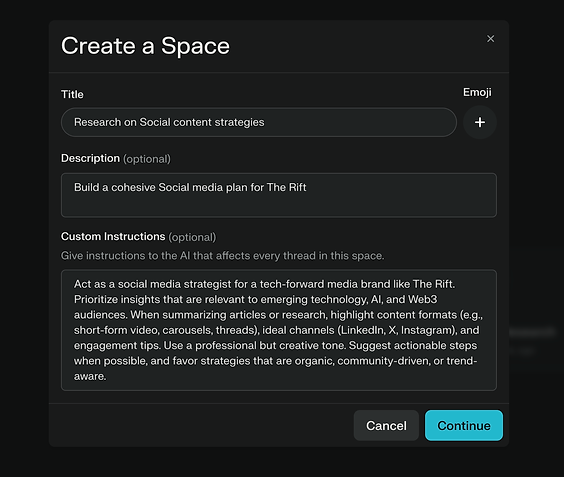
On Mobile:
- Tap the Spaces icon in the app
- Tap + to create a new one and enter the same details above
Step 2 - Starting a Thread in a Space
Each Space has its own query box—just like the main Perplexity screen, but scoped to your project.
Before submitting a query, choose your sources:
- Web = Searches the internet only
- Files = Searches only the uploaded files in this Space
- Links = Uses any attached or saved URLs in the Space
- Web + Files + Links = A powerful combo for broad and deep insights
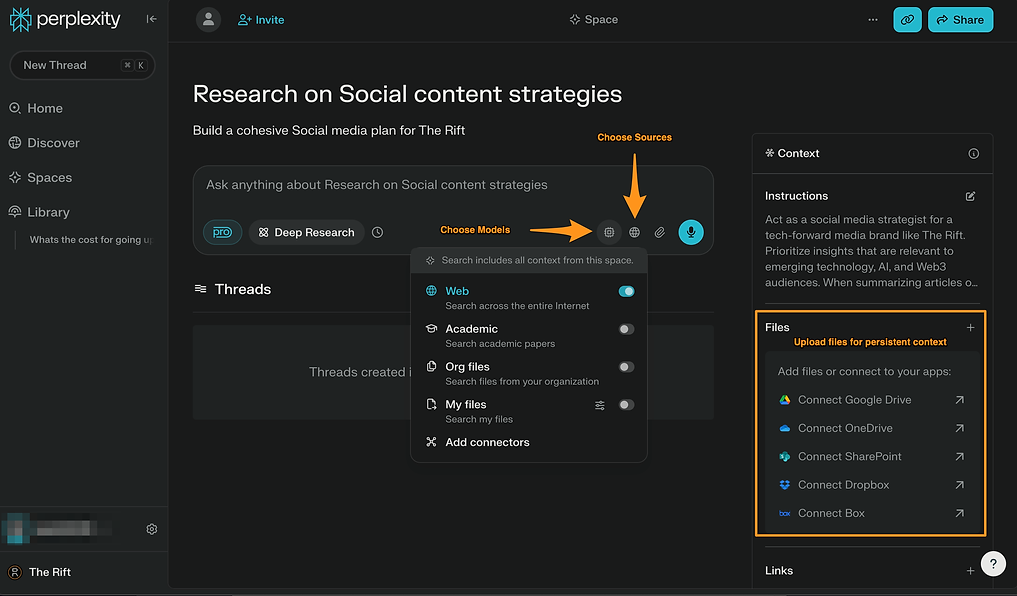
If you uncheck all external sources, you’ll engage with the AI model alone, using only its built-in knowledge.
Step 3 - Uploading Files to Your Space
Perplexity Pro and Enterprise users can upload up to 50 files per Space. These are stored persistently and available to all collaborators.
To upload:
- Open the Space. In the Files box (right-hand side), click the '+' icon to add files
- You have the option to upload local files or connect to a file service through connectors
- Perplexity provides a host of connectors to help bring in data from external sources, allowing for persistent context and data for your long-form work with Spaces.
Note: PNG and JPEG files cannot be uploaded to a Space but can be temporarily attached to a Thread.
Step 4 - Sharing and Collaborating
Invite others to your Space for true teamwork:
- Open the Space and click + Invite (top-left corner)
- Add their email address
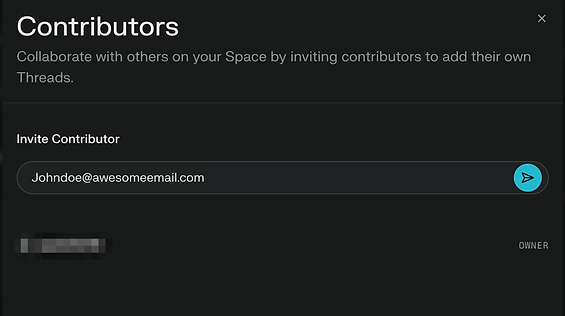
Pro users can invite up to 5 collaborators per Space; Enterprise Pro allows unlimited.
Real-World Use Cases
Content Repurposing
- Space: Blog to LinkedIn Converter
- Instructions: "Write in a professional, engaging tone. Limit to 300 words, use 1 CTA."
Academic Study Aid
- Space: Chemistry Final Prep
- Instructions: "Summarize chapters, generate flashcards, and quiz questions."
Product Research Hub
- Space: LLM Comparison Matrix
- Instructions: "Keep scorecards on model speed, accuracy, and cost from sourced benchmarks."
What’s New in 2025
- Shared Spaces: Real-time collaboration improvements
- R1 Model Integration: Smarter logic and reasoning with DeepSeek
- YouTube Search: Supports video content in responses
- Better Custom Instructions: More control over tone, style, and structure
Pro Tips
- Customize Smartly: Specific instructions = more relevant answers
- Organize Threads: Pin key responses, archive what's done
- Combine Sources: Use Web + Files + Links for robust results
- Use Attachments for Ad-hoc Tasks: Great for temporary file analysis
Wrapping Up
Perplexity Spaces are more than folders. They’re your co-pilot for organized thinking.
Whether you’re researching, creating, or collaborating, Spaces keep your work grounded, searchable, and adaptive. Build once, reuse often, and let Perplexity scale your brainpower.
Ready to try it? Start your first Space today.
Knowledge Check
1 / 5What is the primary function of Perplexity Spaces?